Wednesday, May 10, 2017

Redmi 4 India launch - Power in your hand

  5 comments
May 10, 2017


POWER IN YOUR HAND

Xiaomi is going to launch its latest budget killer smartphone in India expectedly on May 16, 2017 in a launch event in Mumbai. After getting overwhelmed response for Redmi Note 4 and Redmi 4A this year in India, Xiaomi is going to launch Redmi 4. Redmi 4 will probably be replace and upgrade for well acclaimed Redmi 3S/ Prime.

Xiaomi has been doing good in India when it comes to smartphones, specially in the last two years. Xiaomi has lot more work to do in offline sales and after sale services. 


Xiaomi has been dominating the Indian smartphone market, primarily in the budget category through Redmi series. Though the specifications are not officially available yet, it is more likely to be launched with Snapdragon 435 and 2 GB RAM. Stay tuned for more information. 

Read More

Thursday, December 22, 2016

[Fixed] Unable to open an app from notification or unable to share or import somthing in an app in MIUI

  1 comment
December 22, 2016


  • Nothing happens when I try to open an app from notifications. 
  • Nothing happens when I try to share any thing from an app.
  • Unable to import or export content from/in an app. 


To be very true these were the most annoying problem I faced after buying a Xiaomi Redmi 3S Prime. It was my first Mi phone so I was not very familiar to MIUI. I faced the issue when I tried to open some apps from notifications. Additionally I was unable to share and import content in some apps. After 10 days of trial and error, I got rid of the problem. Luckily it was not a big bug. This problem could upset you after buying a new phone so I am sharing the method to solve this annoying issue.

Step 1 

Note down the apps having such problems. 

Step 2

Go to settings> Installed apps

Step 3 

Now select one of the apps having the issues. Scroll down to find and select "Other Permissions".

Step 4 


Turn on "Start in background" and "Display pop-up window" options.

Step 5 

Repeat the process for other such apps having problems.

Reason: 

Like other blogs and how-to sites I will not only tell you the method. I'll tell you what's the reason behind it. Actually in Android 6.0 Marshmallow and up apps get installed without asking much permissions. They later ask you to give permission to use storage, contacts, wifi etc. when needed. If you deny a required permission, app can't use a resource. In our case some apps don't ask to allow them to "start in background" and to "create pop-up window". When we give them permissions, they work fine.

For more queries like our Facebook page and leave a comment.
Enjoy.  

Read More

Thursday, November 3, 2016

How to turn on USB Debugging on Android?

  2 comments
November 03, 2016

To enable USB debugging on your Android device you have to Unlock "Developer Options".
To enable Developer Options follow these steps:

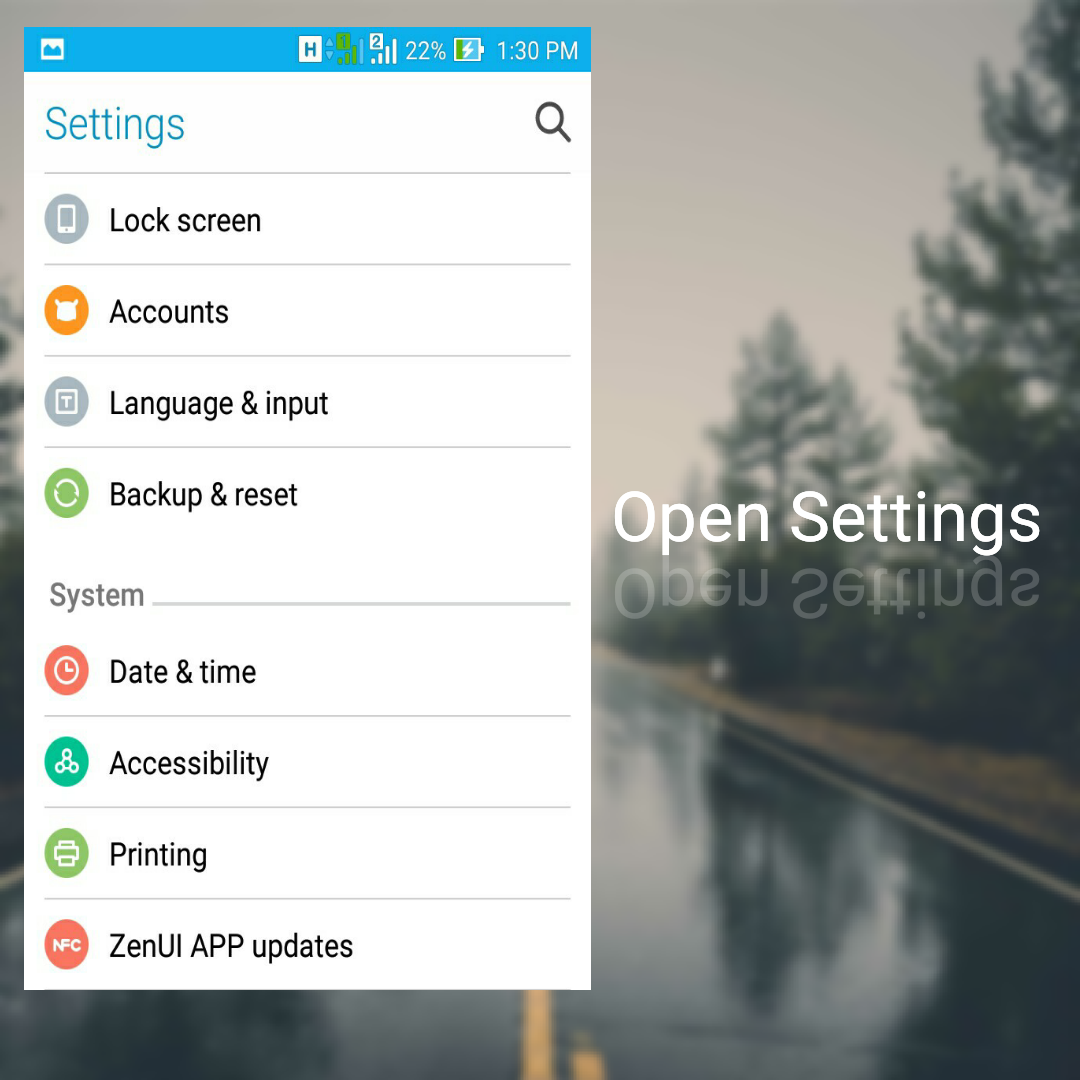
  • Open Settings.


  • Scroll down to find "About" or "Device Info".


  • Open "About" option and look for "Software Information".


  • Open Software Information option and find "Build Number".


  • Tap 8 times on build number to enable "Developer Options".


  • Go back to settings to see Developer Options in Settings.


Open Developer Options and check USB Debugging option to enable it.

Read More

Wednesday, November 2, 2016

How to root Zenfone 5 Kitkat/Lollipop?

  No comments
November 02, 2016


If you are finding it difficult to root your Zenfone 5 after upgrading to Kitkat/Lollipop, I have a good news for you.
I have made it easy and step by step.

Requirements:

  • A Windows or Linux PC.
  • An USB data cable.
  • ADB drivers.

Step 1

Turn on USB debugging on your device.

Step 2

Connect your device to your PC via USB data cable.

Step 3

Download and install ADB drivers to your PC.
To download click here.

Step 4

Download Zenfone 5 rootkit.
To download click here.

Step 5

Unzip ZF5_LP_ROOTKIT.

Final Step

For Windows:
Run executable "root.bat" file.
For Linux:
Open "SH" folder and run "root.sh" script file.

Read More

Saturday, October 1, 2016

What is Android rooting?

  No comments
October 01, 2016

You might have heard or read about 'Android Rooting' or 'Android Root'. There are many misconceptions about android rooting. Some say it is like 'Jailbreaking' in Apple iOS, some says it is difficult and only testers and developers should try these thing.
I'm here to clear there misconceptions and to tell you what android rooting is and what it is for.

What is android rooting?

Rooting is the process that allows an Android OS user to attain 'privileged access' or 'root access' on their android devices. Android OS is 'Linux' based operating system and rooting gives similar access to administrative permissions as on Linux and such operating systems.
We can root our Android devices to overcome system limitations set by device manufacturers, alter or replace system applications, run apps which requires root permissions, modify current firmware(rom), and install a new custom firmware or latest Android versions.

Rooting and jailbreaking

Rooting is often compared to jailbreaking Apple devices running iOS. These are quite different concepts. Jailbreaking is performed with a 'locked bootloader' to bypass several Apple prohibitions, to install external apps and modify system while rooting is performed with an 'unlocked bootloader' to get privileged access to install apps and modify system.

What changes rooting does on your system?

Though there are different methods of rooting for different devices, but usually they exploit firmware's one or more security bugs to skip the 'digital signature check' for updates. Then a modified firmware update can be installed which usually have utilities to run root apps. Such as the 'su binary' can be copied to the path /system/xbin and granted executable permissions by 'chmod' command. Now a third party root governing app like SuperSu or SuperUser can give root permissions to apps and keep their log data

How to root my Android?

Most of the popular mobile manufacturers like 'Asus', 'Sony', 'HTC' and 'Google' explicitly provide the methods of unlocking bootloader. There are a lot of easy, fast and automated methods of rooting popular Android phones or devices on the internet.

Read More

Friday, September 30, 2016

How to hide WhatsApp multimedia files automatically from Gallery and other media players in Android?

  3 comments
September 30, 2016

We all use a lot of social media apps nowadays on our android smartphones. Where we can share our precious moments with our friends. But these apps download pics and videos to your phone and can cause problems when someone uses your phone. Who want his wife to see his girlfriend's pics, jokes apart. All download stuff can be seen easily in Gallery and other Multimedia apps.
There are a lot of solutions of this problem. You can use third party apps to hide content, but such free apps are full of ads and they don't hide new content in hidden folder instantly. Well, we are not here to discuss about such apps. There is a very simple solution exist and you don't need to install any app for it. 

Step by Step Process:

Step 1

Check if your file manager is able to create new files. If not, download any external file manager. I recommend ES File Explorer.

Step 2

Open the folder that you want to hide. For example - WhatsApp

Step 3

Now create file and name it <.nomedia> without tags.

Step 4

Open Gallery to see the changes. Delete <.nomedia> file to unhide content again.

Most of the android apps neglect the folder containg file <.nomedia>. It is a hidden file so you cannot see it without enabling <show hidden files> option in your file manager.
All you have to do is create a blank file and remame it to <.nomedia> in the folder that you want to hide. You can still see the content when you open that folder in file manager. Gallery and other music, photos and video players will not show the content.

Read More

Thursday, September 15, 2016

[Fixed] [Solved] Zenfone "Please install SIM1 card" or "Please install SIM2 card" error

  9 comments
September 15, 2016

Many of Zenfone users (including me) have been facing this "SIM card error" on their phones. It gets worse when we are in middle of something (during playing game, using internet or during calls) and signal drops. Then it reconnects and after some time, the error comes again. Its a very annoying and irritating problem. I searched internet for solutions but it didn't help. Some says to eject and insert SIM card, some says to upgrade or downgrade firmware. But it is neither a software issue nor a firmware bug. At last I got it solved by following method. I am sharing it with you.

STEP 1

Open back cover of your phone.

STEP 2

Remove battery if it is removable and it is necessary to remove it to see SIM card slot.

STEP 3

Remove SIM card from the SIM card slot which is showing error.

STEP 4

Now see following picture carefully and look for those two tiny bezels(metal stripes).

Press them lightly with your SIM card edge or with a toothpick. Don't press too much as it may harm your phone.

STEP 5

Now press whole SIM card slot with your thumb lightly, to bend it slightly downward.

STEP 6

Now insert your SIM card and power up your phone. Repeat steps again if problem still persists.If it helps please hit like on facebook button. Comment for feedback and queries.

This error is caused by loose SIM card in SIM slot. It gets loose when you eject or remove your SIM frequently or by tampered or SIM card with uneven edges. By following above method you can make it fit tight again.


Note: Do not press too much as it may damage your phone. Do not touch any other part of your SIM slot or battery. I have tested this method on my Zenfone 5 and it worked like a charm. Though it may damage your phone, so use this method on your own risk. I am not responsible for damaged devices and void warranties.


Read More